- macOS 2026.1 Beta Information
- How to Get the Beta
- Known Issues
- Unable to compare powder patterns on macOS or Linux with different wavelength to the default
- Unable to run the CCDC maintenance tool on macOS 15
- Use of ConQuest’s 3D Visualiser on Retina Displays
- ConQuest is not compatible with dark mode in macOS
- On macOS, ConQuest may occasionally not display interface elements correctly
- Aromatics Analyser and POV-Ray image creation are not compatible with Apple ARM-chipsets (M1)
- Transferring search results from ConQuest to Mercury seems to fail
- Labels in images saved from Mercury on macOS may be too large
macOS 2026.1 Beta Information
At the CCDC, we prioritise customer centricity and continually seek to enhance support of our community. We want to better support a range of operating systems, and as part of this effort, we have worked to develop Universal Binary builds of our software to better support macOS users on more modern Mac systems with M-series (ARM) chips. Universal Binaries allow our desktop software to run natively on both Intel and M-series Macs, improving performance on M-series Macs where we previously used Rosetta translation. Please note that in this release, we are not providing a Universal Binary for ConQuest, which will continue to be supported through Rosetta translation - we are working on updating ConQuest to a Universal Binary for future releases.
We are making the 2026.1 macOS build available to existing customers as a beta, so that users can test out our latest software early and provide any feedback. Please note that this is not a final version of our tools and we do have a number of known issues listed below, which we aim to address in either our final version or in future updates. If you do encounter one of the issues below, you don’t need to contact us. If you encounter other issues, please do contact the team at support@ccdc.cam.ac.uk, and we’ll take it from there. Thank you for testing out our software!
How to Get the Beta
If you are on 2023.1 or later:
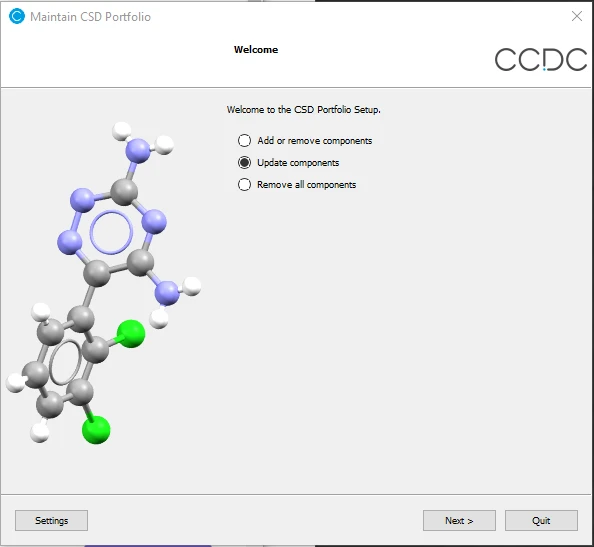
Open the CCDC Maintenance Tool from the menu, or from the installation folder.
Click on Settings in the bottom left of the Maintenance Tool.
Click on the Repositories tab.
Uncheck the CSD Software repository.
Click on “Temporary repositories”.
Click Add at the bottom left.
In the Repository field, paste in this URL: https://beta-install.ccdc.cam.ac.uk/online_repo/mac_universal_beta1
Click Test to confirm that the repository is correctly set up.
Ensure the Default Repository for CSD Data and the Temporary repository just defined are selected and that no other repositories are selected, and click OK.
Select Update components and follow the instructions in the Maintenance Tool.
If you are using software version 2022.3 or earlier, or if this is your first time installing CSD software, Request Download Links from Downloads.
Known Issues
Unable to compare powder patterns on macOS or Linux with different wavelength to the default
There is a known bug on MacOS and Linux for the PXRD Match and Optimise features. When a reference file is read in with a wavelength different to the default wavelength value, the wavelength in settings is not updated. This results in a dialog stating “Unable to compare powder patterns…”. If the wavelength in the file is very close to the default value in Mercury, an option is to edit the file to make it exactly the same, typically in the header for .xy or .xye files.
Unable to run the CCDC maintenance tool on macOS 15
For installations carried out with the 2024.2 and earlier versions of the CSD installer, you will get the error message ‘The application “ccdc-maintenance-tool.app” can’t be opened' when attempting to run the CCDC Maintenance Tool on macOS 15. This is due to macOS 15 introducing new requirements to allow applications to run.
We have resolved these issues, but as upgrades are not possible with existing installs you will need to re-install again using the CSD Portfolio installer to obtain the latest version that will allow you to apply future updates normally.
Use of ConQuest’s 3D Visualiser on Retina Displays
On macOS systems with retina displays only, there is a known issue with being unable to select atoms in ConQuest’s 3D visualiser. We would recommend exporting your hits to Mercury for further analysis instead.
ConQuest is not compatible with dark mode in macOS
ConQuest will not change its display in macOS dark mode but will instead use the same display as found in standard display mode.
On macOS, ConQuest may occasionally not display interface elements correctly
On macOS, ConQuest may sometimes open an interface panel and not properly render all of its elements correctly. If this happens, closing and re-opening the element should resolve the issue.
Aromatics Analyser and POV-Ray image creation are not compatible with Apple ARM-chipsets (M1)
The Aromatics Analyser and POV-Ray functionality in Mercury are currently not compatible with Apple ARM chipsets running macOS and are not supported. All other functionality should work correctly with Apple ARM chipsets. We plan to improve support for these chipsets with subsequent releases.
Transferring search results from ConQuest to Mercury seems to fail
As ConQuest is older software, we have more work to do before it can be transferred to a Universal Binary. Consequently, the first time that you transfer search results to Mercury from ConQuest via Visualise Structures or Analyse Data, nothing appears to happen (after around 5 minutes you’ll find that Mercury opens with your results). This should only happen the first time that you do the transfer, and subsequent transfers should be much faster.
Labels in images saved from Mercury on macOS may be too large
Labels in jpg or png files saved from Mercury on macOS may be too large - this issue is sometimes resolved by the use of an external monitor.
Was this article helpful?
That’s Great!
Thank you for your feedback
Sorry! We couldn't be helpful
Thank you for your feedback
Feedback sent
We appreciate your effort and will try to fix the article